
Hamburger Menu on Desktop Squarespace 7.1
If you're using Squarespace 7.1, you’ve probably noticed that there’s no native option to add a hamburger (mobile-style) menu to the desktop view. This is one of the most common customization requests I receive from clients.
Below, you’ll find the custom CSS code you can copy and paste to easily add a hamburger menu to your Squarespace 7.1 desktop navigation.
Code
display: none;
}
.header-burger {
display: flex;
}
.header--menu-open .header-menu {
visibility: visible;
opacity: 1;
}
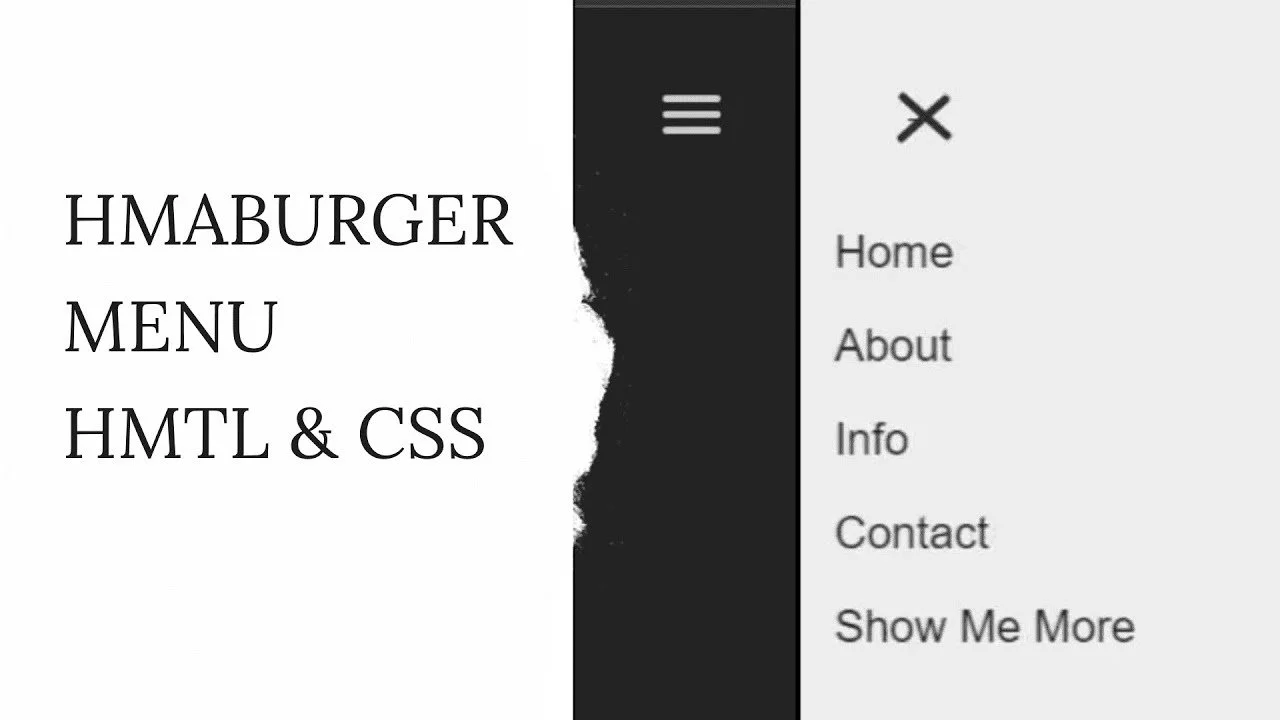
Why Add a Hamburger Menu on Desktop?
A desktop hamburger menu can instantly simplify your site’s layout — especially if you’re aiming for a minimal, modern, or mobile-first design. By moving your navigation into a compact icon, you open up space in the header and allow your hero imagery or headline to take center stage.
On older Squarespace versions (like 7.0), adding this feature was much simpler. In Squarespace 7.1, however, you’ll need to use a bit of custom CSS to achieve the same effect.
How to Add a Desktop Hamburger Menu in Squarespace 7.1
1. Open the Custom CSS Panel
Press / on your keyboard, type “CSS”, and hit Enter to jump directly to the Custom CSS settings.
2. Paste the Code
At the top of this blog post, you’ll find the complete CSS snippet.
Copy it and paste it directly into your Design → Custom CSS area.
Once the code is applied, your default navigation links and header button will be hidden, and you’ll see a fully functional hamburger menu in their place — including scrollable navigation and an optional CTA link at the bottom.
Customization Options
This method is flexible and easy to modify depending on your design needs:
Show Both the Navigation and Hamburger Icon
If you’d like to keep the traditional desktop navigation visible, you can adjust the CSS to show both at the same time.
Keep the CTA Button in the Header
You can also keep the header’s call-to-action button visible while moving only the navigation links into the hamburger menu.
Change the Menu Background Opacity
Adjust the background opacity of the open menu (from 0 to 1) to match your branding, mood, or layout style.
The code is modular, so tailoring it for different clients or site designs is simple.
Troubleshooting Common Issues
Hamburger Icon Missing
Double-check the CSS rule that sets
display: flex;
on the hamburger icon container — this is often the cause.
Menu Not Opening
Make sure the menu panel is set to the proper visibility or display state, such as:
visibility: visible;
or
display: inline-flex;
(depending on the version of code you're using).